Creating a LinkedIn Business Page takes about twenty minutes if you have your assets ready and know what you're doing. Most people don't, and they end up with an empty page — wrong type, low-res logo, no About section, no hashtags — that hurts more than no page would. This guide gives you the exact seven-step setup, plus the things to do after the page is live so it's actually worth running.
Before you start, one question: do you actually need a page right now? Not every business does. We'll cover that decision in 60 seconds, then get to the steps.
TL;DR — In Six Bullets
- Prerequisites: personal LinkedIn account, at least 7 days old, basic profile completion. No minimum connections required.
- Page types: Company (most businesses), Showcase (sub-brand of an existing company page), Educational Institution (accredited schools only). Type is locked at creation — pick once.
- Seven steps to live: sign in → For Business menu → choose type → fill identity → upload logo + tagline → verify → complete the profile.
- Mobile: iOS app supports creation. Android does not. Desktop browser still recommended for full setup.
- Logo 300×300, banner 1128×191, tagline ≤120 chars, About 200–2,000 chars, 3 hashtags, up to 20 specialties.
- Empty pages hurt more than no page. Fill all fields before you publish your first post.
Before You Create: Do You Actually Need a Page?
Not every business needs a LinkedIn Business Page in 2026. Personal profiles get 561% more reach on identical content compared to company pages, so the page is rarely a publishing channel — it's infrastructure for things only a page can do.
You need one if: you're running paid LinkedIn ads (required), hiring more than occasionally (job posts run through the page), selling enterprise B2B (buyers research the page during procurement), have multiple product lines that need separate audiences (Showcase Pages), or operate in a regulated industry where compliance requires brand-level posting.
You probably don't need one yet if: you're a solo founder, consultant, or coach where the brand is you. In that case, put 100% of your content energy into your personal profile and revisit the page question once you have employees, paid spend, or hiring volume.
For the long version of this decision — the full reach gap data, the two-page strategy, and how employee advocacy bridges personal and brand — read LinkedIn Personal Profile vs Company Page 2026 after this article.
Pick Your Page Type (Once)
LinkedIn offers three page types. The type is locked at creation — you cannot convert between them later. Pick carefully.
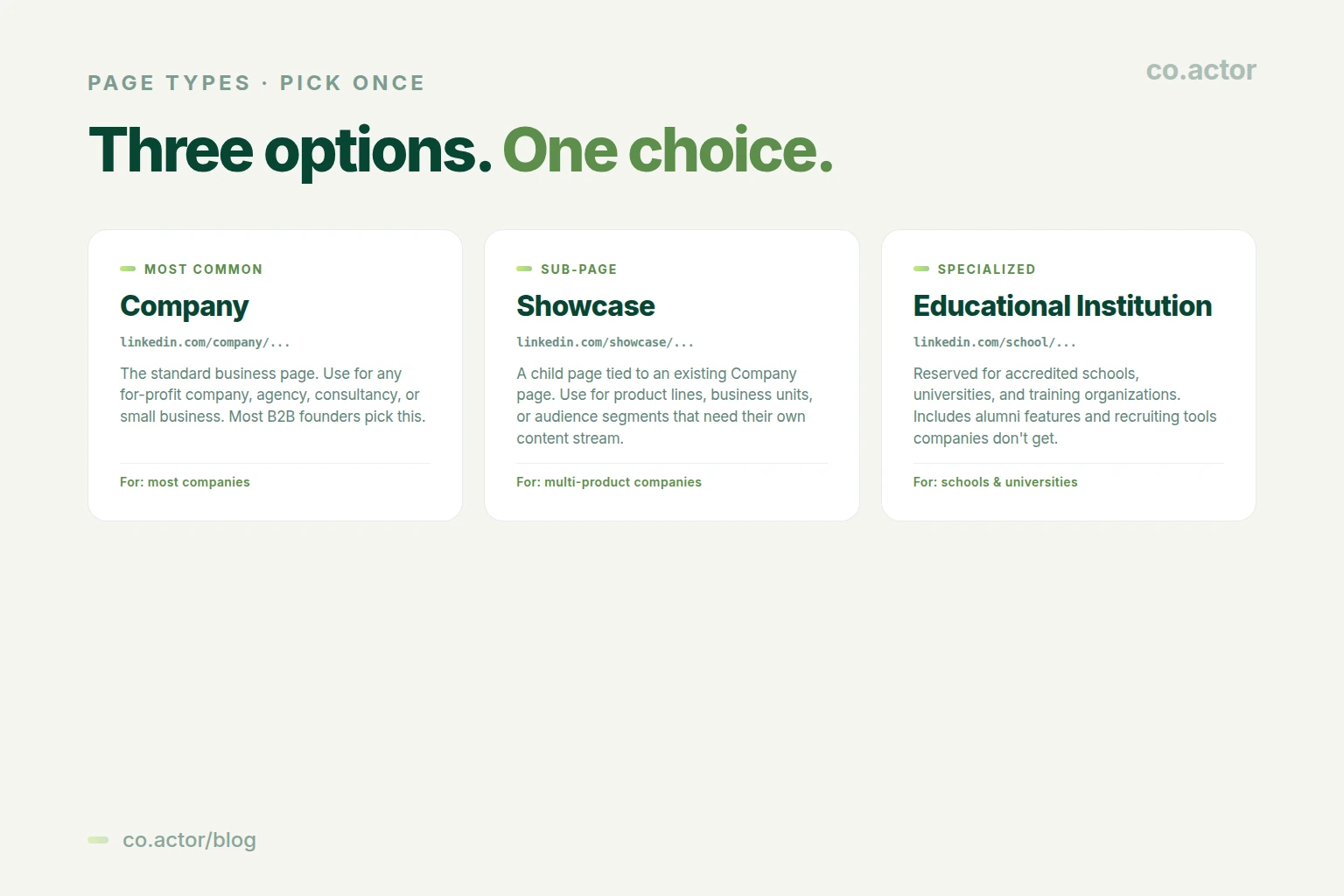
Company
The standard business page. URL pattern: linkedin.com/company/your-brand. Use this for any for-profit business, agency, consultancy, freelance brand, or small business. The vast majority of B2B founders pick this. Company pages get all the standard features — paid ads, hiring posts, employee verification, analytics, follower management.
Showcase Page
A child page tied to an existing Company page. URL pattern: linkedin.com/showcase/your-product. Use a Showcase Page when you have a Company page and need a separate content stream for a product line, business unit, or audience segment that doesn't belong in the main feed. Example: a parent company with three distinct products — Microsoft for Business, Microsoft for Education, Microsoft Azure — would use Showcase Pages for each. Showcase Pages need a parent Company page to exist first.
Educational Institution
Reserved for accredited schools, universities, training organizations, and similar education providers. URL pattern: linkedin.com/school/your-school. Educational Institution pages unlock alumni-specific features (alumni networks, year-by-year statistics, recruiter access to alumni pools) that Company pages don't get. If you're a coding bootcamp or corporate training arm, you need to weigh the alumni features against the perception of being a "school" rather than a business.
How to Create a LinkedIn Business Page — 7 Steps
The seven steps below are for desktop. Mobile is covered separately in the next section.
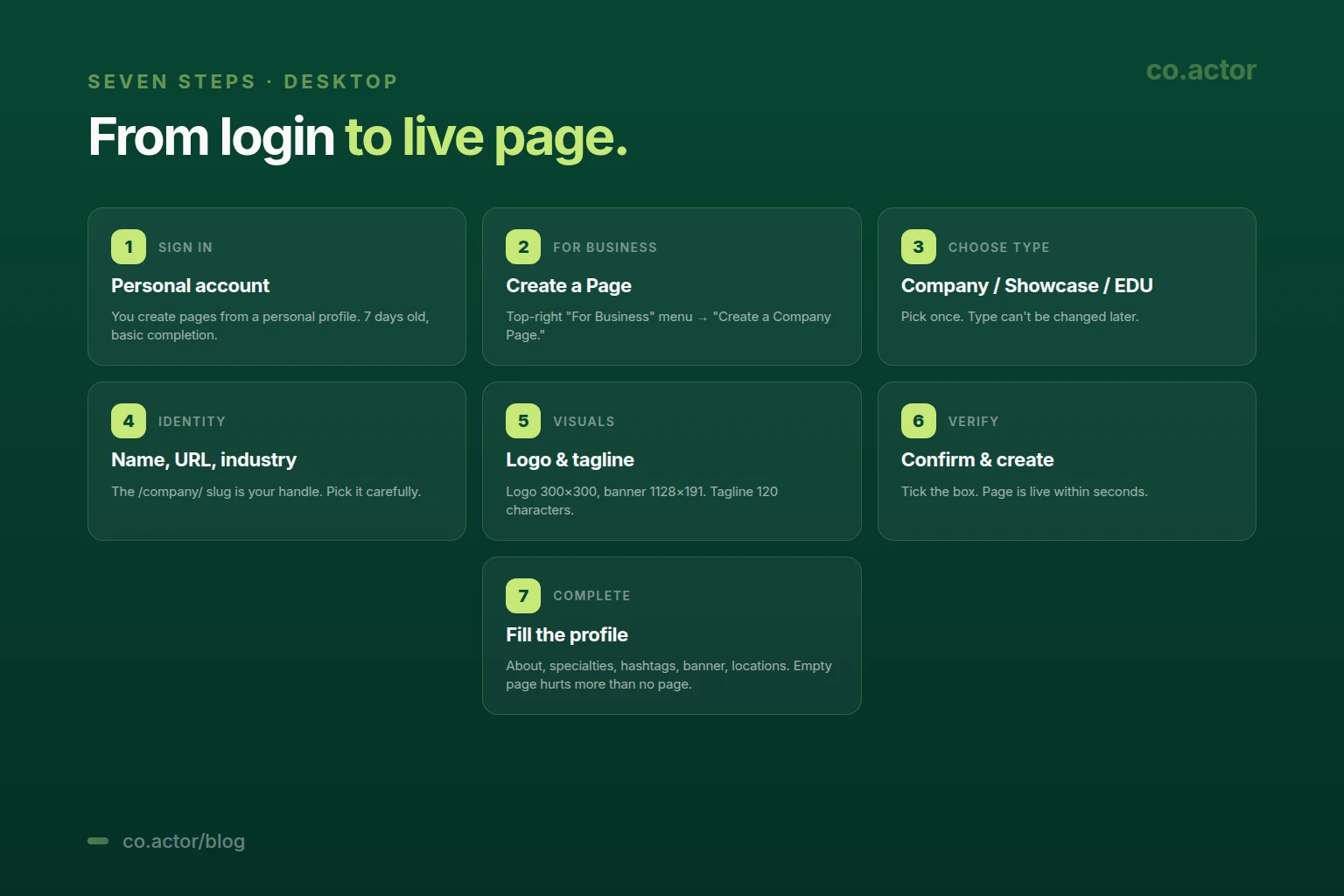
Step 1: Sign In to Your Personal Account
You create LinkedIn Business Pages from a personal LinkedIn profile. The personal profile becomes the page's first admin automatically. You don't create a separate "company login." If you don't already have a personal account, create one and let it sit for at least 7 days before attempting to create the page.
Step 2: Open "For Business" → "Create a Company Page"
From the LinkedIn home feed, click the For Business icon in the top-right (it looks like a 3×3 grid). Scroll to the bottom of the dropdown and click Create a Company Page. LinkedIn opens a page-type selection screen.
Step 3: Choose Your Page Type
Pick one of the three types covered in the previous section: Company, Showcase, or Educational Institution. This choice is permanent. If you're not sure, default to Company — it covers most use cases and gives you the most flexibility.
Step 4: Fill In Your Company Identity
LinkedIn now asks for the basic identity of the page. The fields:
- Page name. The name shown publicly. Match the brand name exactly — don't add taglines or descriptors here.
- LinkedIn public URL. The slug after linkedin.com/company/. Pick this carefully — it's the page's permanent handle. Keep it short, brand-aligned, and hyphenated if needed (e.g., your-brand, not YourBrand2026).
- Website. Your real domain. LinkedIn shows this prominently on the page header.
- Industry. Pick the closest match. The dropdown is fixed — you can't write a custom industry.
- Organization size. Employee count bracket (1, 2–10, 11–50, 51–200, etc.).
- Organization type. Public company, private company, non-profit, etc.
Step 5: Upload Logo and Tagline
Logo specs: 300×300px square, PNG with transparent background ideally. The logo appears everywhere your page is referenced, so use the highest-resolution version of your brand mark you have.
Tagline: 120 characters maximum. This appears under the page name on the page header and in search results. Skip the buzzwords. State the actual outcome you deliver — "We help B2B founders run LinkedIn that pulls pipeline" reads better than "Empowering professionals to elevate their personal brand."
Step 6: Verify and Create
LinkedIn shows a verification checkbox confirming you're authorized to create this page on behalf of the organization. Tick it and click Create Page. The page goes live within seconds.
Step 7: Complete the Profile (Don't Skip This)
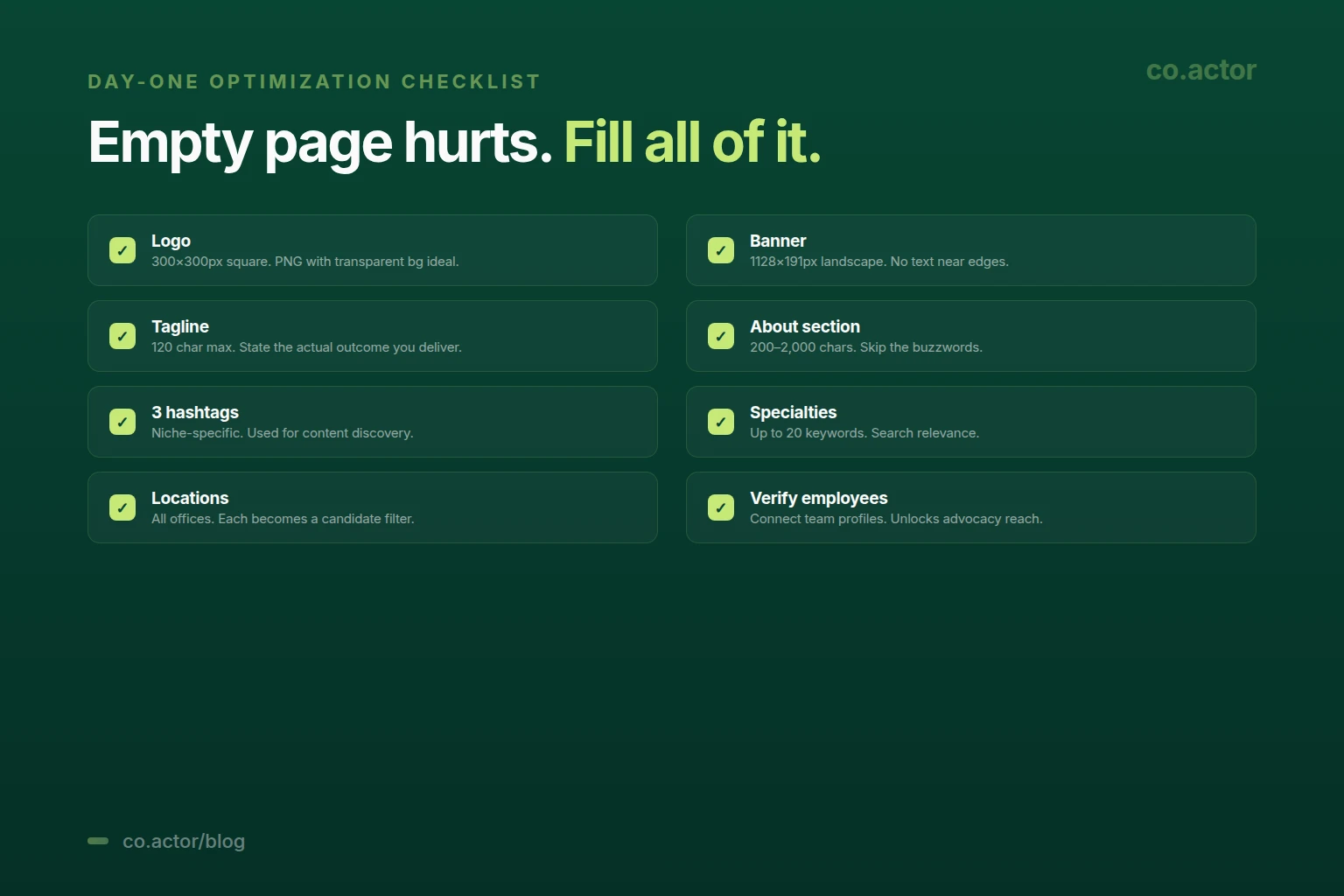
This is the step everyone skips and then wonders why their page sits at zero engagement. Before you publish your first post, fill out:
- About section (200–2,000 characters)
- Banner image (1128×191px)
- Three relevant hashtags
- Up to 20 specialties (used for search)
- Locations (each becomes a candidate filter for hiring)
- Custom button (Visit website, Contact us, Sign up — pick one)
- Verify employees — connect team profiles to unlock employee advocacy reach
The full optimization checklist:
Creating a Page on Mobile (iOS Only)
The LinkedIn iOS app supports company page creation as of 2026. The Android app does not — Android users have to use a desktop browser.
On iOS, the path is similar to desktop:
- Open the LinkedIn app and tap your profile photo.
- Scroll to "Manage your account" and tap "For Business" or "Create a Company Page."
- Walk through the same seven steps — type, identity, logo, tagline, verify.
Practical caveat: optimization steps after creation (banner upload, formatting the About section, adding hashtags) are still easier on a desktop browser. Most teams create the shell on whichever device they have handy and finish the optimization on desktop.
After You Create: How to Actually Use the Page
The page is live. Now what?
The mistake everyone makes is treating the page like a publishing channel and posting daily company updates. That doesn't work. Company pages reach roughly 1.6% of their followers organically — most of what you publish on the page won't be seen.
The strategy that does work has three layers:
- Page is the credibility hub. Buyers and candidates land on the page during research. The job is to confirm legitimacy — clean banner, complete About, recent customer evidence, named team. The page doesn't need viral reach. It needs to look real.
- Personal profiles do the distribution. Founders, executives, and SMEs post the actual content from their personal profiles. Personal profiles get 561% more reach. This is where pipeline gets built.
- Employee advocacy bridges the two. When the page publishes a strong post (a customer story, hiring announcement, product update), employees share it from their personal profiles with their own framing. The post then travels through personal-profile reach mechanics. The original lives on the page; the distribution happens through people.
One more practical note: in March 2026, LinkedIn cut the page invitation limit to 50 invites per month. The old growth tactic of inviting your entire connection list to follow the page is functionally dead. New page followers in 2026 come from organic content discovery, employee shares converting to follows, or paid promotion.
For the full strategy — what to post on the page vs personal profiles, the 70/20/10 content mix, employee advocacy mechanics — see our two-page strategy guide.
Common Mistakes to Avoid
- Creating the page before you have the assets. An empty page tells visitors nobody is home. Have logo, banner, About copy, and at least one post ready before you go live.
- Picking the wrong page type. Choosing Showcase when you should have picked Company (or vice versa) is annoying because the type is locked. Most founders should pick Company.
- Low-resolution logo. A blurry 100×100 logo on a 300×300 slot is the most visible signal of an unmaintained page. Always upload at full spec.
- Generic About section. "We empower businesses to achieve their goals" reads as filler. State what you do, who for, and what's different about how you do it.
- Treating the page as a billboard. Daily product announcements with no other content tank engagement. Mix in customer stories, frameworks, and team posts.
- Spamming invitations to your connection list. Beyond the 50/month limit, mass-inviting people who don't care creates negative signals. Better to grow followers through content and employee shares.
Frequently Asked Questions
How long does it take to create a LinkedIn Business Page?
About 20 minutes if your assets are ready (logo 300×300, banner 1128×191, About copy, specialties list). The seven creation steps themselves take 5 minutes — most of the time is spent on the optimization that prevents the page from launching empty.
Can I create a LinkedIn Business Page from the mobile app?
Yes on iOS. No on Android. The LinkedIn iOS app supports company page creation as of 2026, but Android users have to switch to a desktop browser. Most teams use desktop anyway because optimization is easier on a larger screen.
What are the prerequisites?
Personal LinkedIn account, at least 7 days old, with basic profile completion (photo, headline, work history). You don't need a specific number of connections. The personal profile becomes the page's first admin automatically.
Can I change my LinkedIn page type after creating it?
No. Type is locked at creation. If you pick wrong, you have to create a new page — LinkedIn doesn't migrate followers automatically. Pick Company unless you have a clear reason to pick Showcase or Educational Institution.
How many pages can I create from one personal account?
No hard limit. Agencies and consultants commonly admin 10–50+ pages from one account. The risk is creating many pages quickly, which can flag your account.
Do I need a Business Page if I'm a solo founder?
Probably not in the first 6–12 months. Personal profiles get 561% more reach. Solo founders should put their content energy into the personal profile until the business has hiring volume, paid spend, or enterprise sales. Full decision framework here.
What size should logo and banner be?
Logo 300×300px square (PNG with transparent background ideally). Banner 1128×191px landscape (keep important elements away from the edges — LinkedIn crops differently across devices).
Run the Page That Earns Its Keep
Serge Bulaev is the CEO and founder of Co.Actor, a LinkedIn growth platform for B2B founders and their teams. He writes about content systems, profile positioning, and how the LinkedIn algorithm actually rewards modern creators.
Sources
Related Reading
- LinkedIn Personal Profile vs Company Page 2026: When You Need One
- LinkedIn Profile Strategy 2026: Make Your Profile Work With the Algorithm
- 30 LinkedIn Post Ideas for Founders 2026 (With Examples)
- LinkedIn for Founders & CEOs: The Data-Backed Playbook
- What Is My LinkedIn URL? Find & Customize It in 2026
Written by
