Your LinkedIn URL is the web address of your profile — the link a recruiter pastes into a candidate brief, the line a customer types into Slack to look you up, the slug at the bottom of every email signature that lets people verify you exist. Most people don't think about it until they need to share it, then realize they're stuck with something like linkedin.com/in/firstname-lastname-9b2c4d and don't know how to fix it.
This article walks you through finding your LinkedIn URL on desktop and mobile, customizing it to a clean version with just your name, and using it in the places where a clean URL actually pays off. The whole thing takes about five minutes once you know the path.
TL;DR — In Five Bullets
- Format: linkedin.com/in/your-vanity-slug. The slug is the part you control.
- Find it on desktop: open your profile and copy the URL from your browser's address bar. That's it.
- Find it on mobile: open your profile in the LinkedIn app, tap the three-dot menu, and choose Share Profile or Contact info.
- Customize it on desktop only. Click "Edit public profile & URL" in the right sidebar of your profile. 3–100 characters, letters/numbers/dashes only.
- Old URLs go to a 404. No automatic redirect, so update your resume, email signature, and bios when you change.
What Is a LinkedIn URL?
Every LinkedIn profile has one URL that points to it. It always follows the same shape: a fixed domain, a fixed path, and a slug that you control.
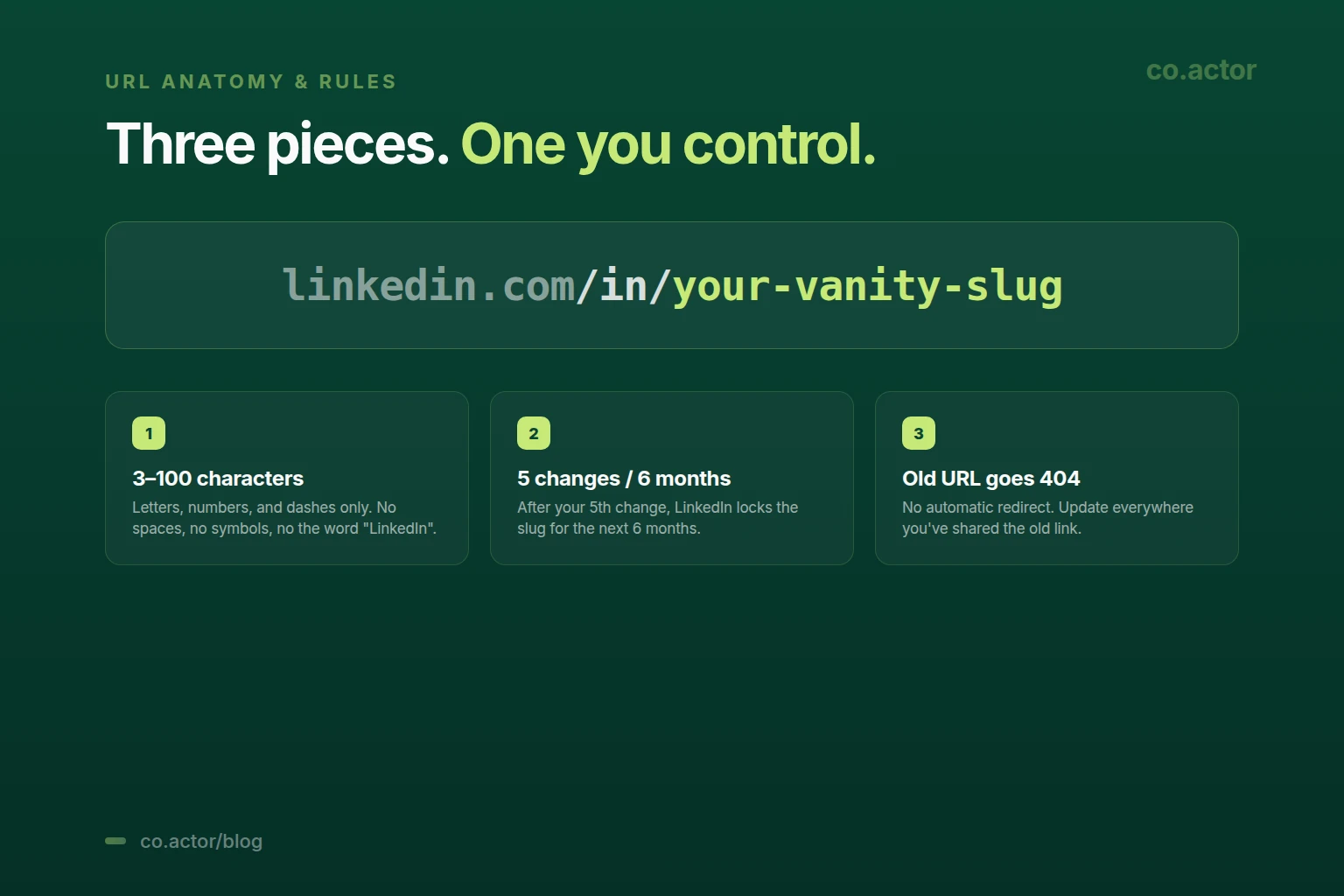
The domain (linkedin.com) is fixed for everyone. The path (/in/) is fixed too — every personal profile sits under /in/. The vanity slug at the end is yours. By default, LinkedIn assigns you a slug like firstname-lastname-9b2c4d with random characters added to keep it unique. You should clean this up.
One piece of terminology to clear up: people use "LinkedIn URL" and "LinkedIn profile link" interchangeably. They mean the same thing — the web address of your profile. LinkedIn's own settings call it your "public profile URL," which is the most accurate name.
One more distinction worth knowing: your personal profile URL (/in/...) is different from your LinkedIn company page URL (/company/...). The customization rules are similar, but the strategic role is very different. If you're a founder, you almost always need both — and they should not look the same.
How to Find Your LinkedIn URL on Desktop
Two ways. Both take less than 30 seconds.
Method 1: Copy It from the Browser Address Bar
- Sign in to linkedin.com in your browser.
- Click your profile photo in the top-left, then click "View Profile."
- Look at the address bar. The URL there — linkedin.com/in/your-slug — is your LinkedIn URL.
- Triple-click the address bar to select the URL, then copy it.
This is the fastest method when you just need to grab the URL once.
Method 2: Open the "Edit Public Profile & URL" Settings
- From your LinkedIn profile, look at the right sidebar.
- Click "Edit public profile & URL" (sometimes hidden under a "..." menu).
- The URL appears in the upper-right corner of the page that opens. There's a copy button next to it.
This is the method to use when you also want to customize the URL while you're there. The same screen is where you'll do the customization in section 4.
How to Find Your LinkedIn URL on Mobile (iOS / Android)
The flow is identical on the LinkedIn iOS app and Android app.
- Open the LinkedIn app and tap your profile photo in the top-left.
- Tap "View Profile."
- Tap the three-dot menu next to your name and headline.
- Tap "Share Profile" — a sheet appears with the full URL and copy options. Or tap "Contact info" — the URL is listed there too.
One important thing the mobile app cannot do: customize the URL. You can copy it on mobile, but to change it, you have to switch to a desktop browser. There's no setting in the app for vanity URL customization.
How to Customize Your LinkedIn URL (Vanity URL)
This is the part most people skip and later regret. The default LinkedIn URL looks like linkedin.com/in/firstname-lastname-9b2c4d. The clean version looks like linkedin.com/in/firstname-lastname. The clean version is faster to share, easier to remember, and signals that you actually maintain your profile.
The Steps (Desktop Only)
- Sign in to LinkedIn in a desktop browser.
- Open your profile (click your photo top-left, then "View Profile").
- In the right sidebar, click "Edit public profile & URL."
- In the upper-right of the page that opens, click the pencil icon next to your URL.
- Type the slug you want after linkedin.com/in/.
- Click "Save."
If the slug is taken, LinkedIn will tell you on save. If the slug is allowed and available, the change takes effect immediately.
The Rules
- Length: 3 to 100 characters.
- Allowed characters: letters (a–z, A–Z), numbers (0–9), and dashes (-). Nothing else. No spaces, no underscores, no special characters.
- Reserved word: the slug cannot include "LinkedIn" or close variations.
- Change frequency: up to 5 changes within any 6-month rolling window. After the 5th change, the URL is locked for 6 months.
- Case-insensitive: capitalization is preserved visually but doesn't matter for the URL itself.
- Old URL goes to a 404: there is no automatic redirect. If anyone follows your old URL, they'll see a "page not found" screen.
Tips That Save You Headaches Later
- Use your real name. First-name-last-name is the gold standard. Skip nicknames unless that's how you're publicly known.
- Avoid numbers if you can. A clean /in/serge-bulaev reads more senior than /in/serge-bulaev-1985.
- Match your other handles when possible. If your Twitter is @sbulaev, try to grab linkedin.com/in/sbulaev. Consistency across platforms compounds.
- If your name is taken, add a profession word, not a number. linkedin.com/in/serge-bulaev-saas is better than linkedin.com/in/serge-bulaev-2.
- Don't change it after you've shared it widely. Old URL → 404 means every business card, resume, and email signature you sent out is now broken. If you've been using the same URL for years, think twice.
Where to Actually Use Your LinkedIn URL
A clean LinkedIn URL is only useful if it lives where people will see it. Six places it earns you something — and one place it doesn't.
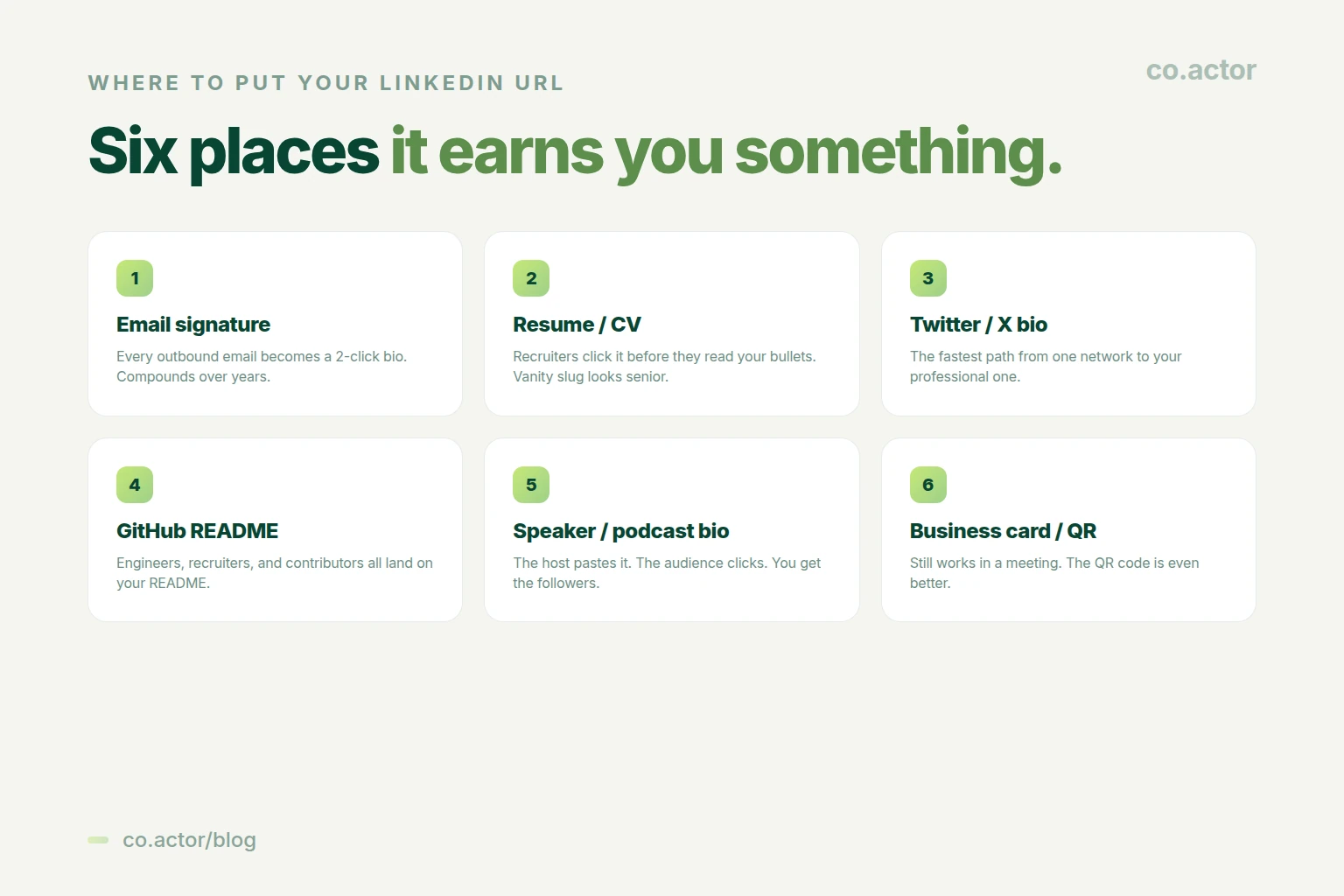
- Email signature. Every outbound email becomes a 2-click bio. Compounding effect — if you send 50 emails a week, that's roughly 2,500 bio impressions a year for zero ongoing effort.
- Resume / CV. Recruiters click the LinkedIn link before they read your bullets. The profile gives them a richer view than a static document. Use your custom vanity URL, not the default with random numbers.
- Twitter / X bio. The fastest path from one professional network to another. Pin a tweet that introduces what you do, then point readers to LinkedIn for the full picture.
- GitHub README profile. Engineers, recruiters, and contributors all land on your README. A LinkedIn link there picks up the audience that GitHub alone can't represent.
- Podcast / speaker bio. When you're interviewed, the host pastes your bio in show notes. A clean LinkedIn URL there sends listeners directly to your profile while attention is hottest.
- Business card / QR. Still works in person. A QR code that resolves to your LinkedIn profile is the modern equivalent of handing someone a card.
Where it doesn't help: as a Slack status, a Discord nickname, or anywhere else you have to manually type it. The URL is for systems where it lives once and gets clicked many times.
Common Mistakes to Avoid
- Leaving the default URL. The auto-generated firstname-lastname-9b2c4d slug is the most common mistake. It looks like an unmaintained profile.
- Putting your job title in the slug. A URL like linkedin.com/in/serge-bulaev-ceo-saas-founder is too long, dates badly when you change roles, and reads desperate. Use just your name.
- Changing the URL after wide distribution. Every old reference to your URL becomes a 404. Lock in your URL early, then leave it alone.
- Using a different name than the rest of your profile. If your profile name is "Sergey Bulaev" but the URL is /in/sbulaev, that's fine. But /in/serge-the-saas-guy while your name shows "Sergey Bulaev" makes the profile look impersonating.
- Including the word "LinkedIn." The platform won't let you save it anyway, but people try.
If you've maintained a polished profile and your URL is the only loose end, a 5-minute customization closes the loop. While you're at it, the broader profile setup matters too — see our profile strategy guide for the 360Brew era if you haven't already optimized headline, About, and featured sections.
Frequently Asked Questions
What is my LinkedIn URL?
Your LinkedIn URL is the web address of your profile, in the form linkedin.com/in/your-vanity-slug. The first part is fixed; the slug after /in/ is the part you can customize. By default, LinkedIn assigns a slug with random numbers; you should change it to a clean version with just your name.
How do I find my LinkedIn URL on mobile?
Open the LinkedIn app, go to your profile, tap the three-dot menu, and choose Share Profile or Contact info. The full URL appears there with a copy button. The mobile app does not let you customize the vanity URL — that requires a desktop browser.
How many times can I change my LinkedIn URL?
Up to 5 changes within any 6-month rolling window. After the 5th change, the URL is locked for 6 months. Most people only need to change it once or twice — to clean up the default slug and to grab a better one if it becomes available.
Will my old LinkedIn URL redirect to my new one?
No. The old URL returns a 404 — there is no automatic redirect. If you've been using one URL for years, think carefully before you change. Anywhere you've shared the old URL (resume, email signature, bios, business cards) needs to be updated manually.
What characters can I use in my LinkedIn URL?
Letters, numbers, and dashes only. The slug must be 3 to 100 characters. No spaces, no underscores, no special characters, no emojis. The word "LinkedIn" is reserved and can't be included.
What's the difference between LinkedIn profile URL and profile link?
There's no real technical difference — both terms refer to the same web address. "Profile URL" is the term LinkedIn uses in its settings. "Profile link" is the casual phrasing people use when sharing.
Should I add my LinkedIn URL to my resume?
Yes, almost always. Recruiters click the LinkedIn link more often than they read your bullet points — the profile gives a richer picture than a one-page document. Use your custom vanity URL, not the default with random numbers. A clean URL signals attention to detail.
Make Your LinkedIn Profile Actually Work
Serge Bulaev is the CEO and founder of Co.Actor, a LinkedIn growth platform for B2B founders and their teams. He writes about content systems, profile positioning, and how the LinkedIn algorithm actually rewards modern creators.
Sources
Related Reading
Written by
