The number one reason people get stuck canceling LinkedIn Premium is they look for the cancel button in LinkedIn settings — and it isn't there. That's not a bug. It's because they subscribed through the iPhone or Android app, which means Apple or Google bills them, not LinkedIn. You cancel where you subscribed.
This guide gives you the exact path for each scenario: web (LinkedIn settings), iPhone (Apple Settings), and Android (Google Play). Plus what stays after cancellation, what turns off, and the cheaper alternatives most people don't know about.
TL;DR — In Five Bullets
- Cancel from where you subscribed. Web → LinkedIn settings. iPhone → Apple Settings → Subscriptions. Android → Google Play Store.
- Web cancellation: Profile icon → Access My Premium → Manage your subscription → Cancel subscription → confirm.
- You keep everything except Premium features. Connections, messages, posts — all intact. InMail, advanced search, full Who's Viewed You — gone.
- Premium stays active until end of billing cycle. No partial refunds. Cancel anytime; you don't lose access immediately.
- Don't actually need to cancel? Downgrade to a cheaper Premium tier instead. Career is the lowest-cost option.
Before You Cancel: Should You Actually?
LinkedIn Premium runs $39.99 to $99.95 per month depending on the tier. Whether it's worth keeping depends on whether you're using the features. The honest test:
- Did you send InMail this month? If yes, Premium is doing work. If no, the credits are pure waste — you're paying $40/month for credits that expire.
- Did you use Who's Viewed Your Profile beyond the last 5? If yes, the data is genuinely useful. If you haven't checked it in weeks, you're not using the feature.
- Did you do any advanced search this month? If yes, Sales Navigator or Recruiter Lite might be paying for itself. If no, you're paying for filters you don't run.
If the answers are mostly "no," cancellation makes sense. If you're using one or two features but not enough to justify the full price, downgrading to a cheaper tier is the better move — see the alternatives section near the end.
Where You Subscribed Determines How You Cancel
This is the part that confuses everyone. LinkedIn Premium can be billed through three different channels, and each has its own cancellation path:
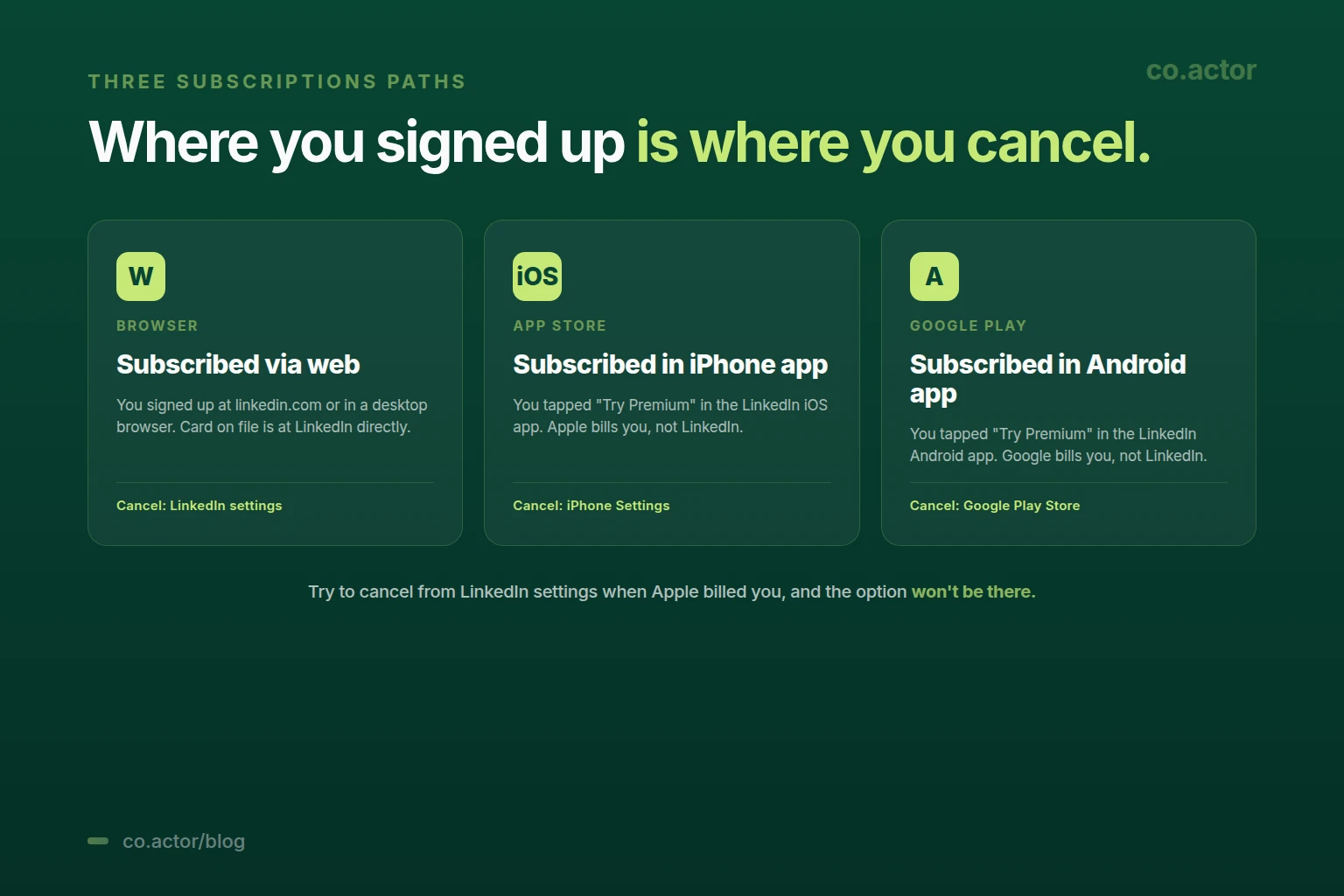
- Browser (linkedin.com). You subscribed at linkedin.com on a desktop or mobile browser. LinkedIn bills you directly. Cancel through LinkedIn settings.
- iOS App Store. You tapped "Try Premium" inside the LinkedIn iPhone app. Apple bills you. Cancel through iPhone Settings → Apple ID → Subscriptions.
- Google Play. You tapped "Try Premium" inside the LinkedIn Android app. Google bills you. Cancel through Google Play Store → profile → Payments & subscriptions.
Quick way to figure out which one applies: check your bank statement or credit card. If the charge shows "LinkedIn" or "LNKD," it's billed by LinkedIn (web). If it shows "Apple" or "iTunes," it's iOS. If it shows "Google," it's Android.
Now the steps for each.
How to Cancel LinkedIn Premium on the Web
Use this path if you subscribed through linkedin.com on any browser (desktop or mobile).
- Sign in to linkedin.com in a browser.
- Click your profile photo (top-right corner of the page).
- Click Access My Premium from the dropdown menu. (If you don't see this option, you don't have an active Premium subscription via web — check iOS or Android.)
- On the Premium page, click Manage your subscription in the left sidebar.
- Scroll down and click Cancel subscription.
- LinkedIn asks you to choose a cancellation reason. Pick whichever applies. (LinkedIn uses this for product feedback — it doesn't affect the cancellation.)
- Click Continue.
- Confirm the cancellation on the final screen.
Once confirmed, you'll see a confirmation page and an email confirmation within minutes. Premium features stay active until the end of your current billing cycle.
How to Cancel LinkedIn Premium on iPhone (iOS App Store)
Use this path if you subscribed through the LinkedIn iOS app. Note: you cannot cancel an iOS subscription from inside the LinkedIn app or from LinkedIn's website — Apple controls the subscription, so you cancel through Apple's interface.
- Open the Settings app on your iPhone.
- Tap your name at the top of the Settings screen.
- Tap Subscriptions.
- Find LinkedIn in the list of active subscriptions and tap it.
- Tap Cancel Subscription.
- Confirm when iOS prompts you.
If you don't see LinkedIn in the Subscriptions list, either you didn't subscribe through iOS (check the web or Android paths instead) or the subscription has already been canceled.
How to Cancel LinkedIn Premium on Android (Google Play)
Use this path if you subscribed through the LinkedIn Android app. Same rule as iOS — Google controls the subscription, so cancellation happens through Google Play, not LinkedIn.
- Open the Google Play Store app on your Android device.
- Tap your profile icon (top-right corner).
- Tap Payments & subscriptions.
- Tap Subscriptions.
- Find LinkedIn in the list and tap it.
- Tap Cancel subscription and follow the prompts.
You can also cancel from a desktop browser at play.google.com/store/account/subscriptions if you'd rather not do it on the phone.
What Happens When You Cancel
Cancellation doesn't reset your account. You don't lose data, connections, or anything you've built. Only the Premium-tier features turn off.
What You Keep
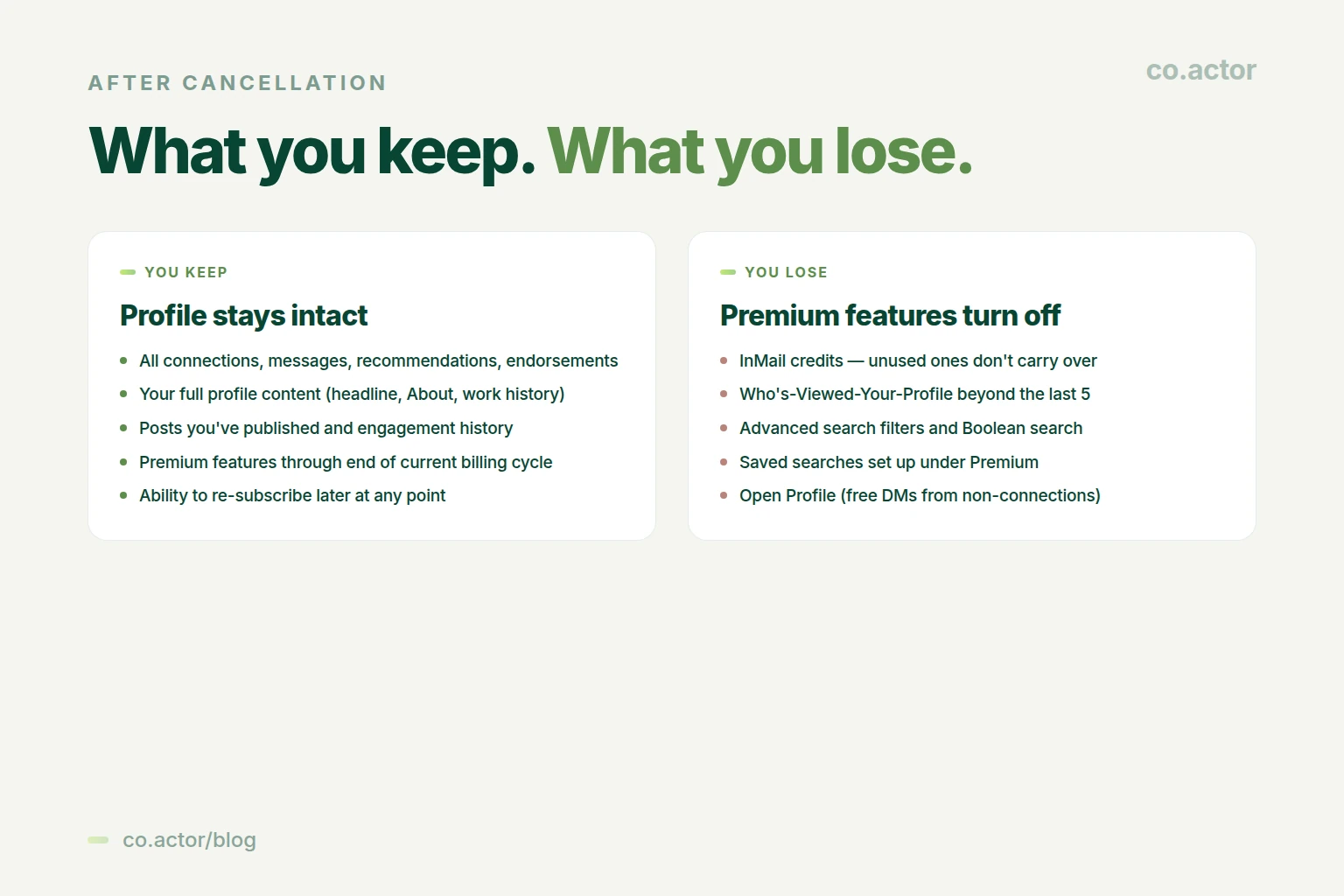
- All connections, messages, recommendations, endorsements.
- Your full profile content — headline, About, work history, featured posts.
- Posts you've published and their engagement history.
- Premium features through the end of the current billing cycle.
- The ability to re-subscribe at any point in the future.
What You Lose (After Billing Cycle Ends)
- InMail credits. Unused credits expire. They don't carry over to Basic, and they don't carry forward if you re-subscribe later.
- Full Who's Viewed Your Profile. Basic only shows the last 5 viewers, not the 90-day history.
- Advanced search filters. Industry, seniority, function, company size — all reduced.
- Saved searches set up under Premium. They get removed when Premium expires.
- Open Profile. Free DMs from non-connections turn off.
- The Premium badge. The little gold "in" badge disappears from your name.
Are Refunds Possible?
Generally, no. LinkedIn does not issue automatic refunds for partial billing periods. If you cancel mid-cycle, you keep Premium until the cycle ends, but you don't get a partial refund for the unused days. This is policy, not a UI quirk.
The exception: if you have a legitimate billing complaint — charged after cancellation, accidental conversion from a free trial, technical issue with your account — contact LinkedIn support directly. They handle these case-by-case. The path: linkedin.com/help → Contact us → Premium subscription. Be specific about the issue and have the transaction date and amount ready.
For iOS subscriptions, refunds are handled by Apple, not LinkedIn. Request through reportaproblem.apple.com. For Android, refunds are handled by Google through Play Store support.
Better Alternative? Downgrade Instead of Canceling
If cost is the reason you're canceling, you might not actually need to cancel. LinkedIn Premium has multiple tiers, and switching to a cheaper one preserves the core features without the full bill.
- Career ($39.99/month, the cheapest tier). Best for active job seekers — Job Insights, applicant rankings, free InMail credits, Who's Viewed You.
- Business ($59.99/month, mid-tier). For people doing outbound on LinkedIn — more InMail credits, full Who's Viewed You, advanced search, Career Insights.
- Sales Navigator Core ($99.99/month, sales-focused). Lead lists, advanced sales filters, CRM integrations, real-time alerts on accounts. Worth it if you sell B2B.
- Recruiter Lite ($170/month, hiring-focused). Designed for non-corporate recruiters. Recruiter-specific search, candidate pipelines, project management.
To downgrade rather than cancel, follow the same path as cancellation but look for a "Change plan" or "Manage plan" option. From the LinkedIn Premium settings page, the option is usually next to "Cancel subscription."
One more alternative: if you're keeping Premium for the search and outbound features but the price is the issue, consider whether a strong content system could replace the outbound use case. Inbound DMs from people who've engaged with your posts often outperform cold InMail anyway.
Frequently Asked Questions
Can I get a refund if I cancel mid-month?
LinkedIn does not issue automatic refunds for partial billing periods. You keep Premium features until the end of the current cycle. For legitimate billing complaints, contact LinkedIn support — they handle these case-by-case rather than as policy.
Why can't I find the cancel button in LinkedIn settings?
Because you didn't subscribe through LinkedIn directly — you subscribed through iOS App Store or Google Play. LinkedIn settings only let you cancel subscriptions LinkedIn bills you for. iPhone subscriptions cancel through Settings → Apple ID → Subscriptions. Android subscriptions cancel through the Google Play Store.
Will my profile change after I cancel?
No. Profile, connections, messages, recommendations, endorsements, and post history all stay intact. Only Premium features turn off — InMail, advanced search, full Who's Viewed You, Open Profile, saved searches. The Premium badge disappears.
Can I keep using Premium until the billing period ends?
Yes. Premium features stay active through the last day of the current billing cycle. Cancel on day 5, you have Premium through day 30. After that, you downgrade to Basic automatically. There's no partial refund for unused days.
Can I downgrade to a cheaper Premium tier?
Yes. From the Premium subscription page, look for "Change plan" or "Manage plan" instead of "Cancel." Career is the cheapest tier (around $39.99/month). Sales Navigator and Recruiter Lite are notably more expensive than the standard tiers.
Can I re-subscribe later?
Yes, anytime. There's no penalty for canceling and re-subscribing. LinkedIn occasionally offers free month trials to returning Premium customers.
What happens to my unused InMail credits?
They expire. Unused InMail credits do not transfer to Basic, and they don't carry forward if you re-subscribe. If you have unused credits and you're planning to cancel, use them before the cycle ends.
Stop Paying for Search. Build Inbound.
Serge Bulaev is the CEO and founder of Co.Actor, a LinkedIn growth platform for B2B founders and their teams. He writes about content systems, profile positioning, and how the LinkedIn algorithm actually rewards modern creators.
Sources
- LinkedIn Help — Cancel your Premium subscription
- Apple Support — How to cancel a subscription from Apple
- Google Play Help — Cancel, pause, or change a subscription
Related Reading
- The LinkedIn Content Engine: Build a Repeatable System Without Burning Out
- LinkedIn Profile Strategy 2026: Make Your Profile Work With the Algorithm
- 30 LinkedIn Post Ideas for Founders 2026 (With Examples)
- What Is My LinkedIn URL? Find & Customize It in 2026
- How to Create a LinkedIn Business Page (2026 Guide)
Written by
